Whether you're a designer, developer, student, freelancer, creator, or business professional, there are apps that can help you manage windows, find files, take screenshots, organize tasks, write notes, automate repetitive work, and use AI more effectively.
The best part is that many of these apps are free or have generous free versions.
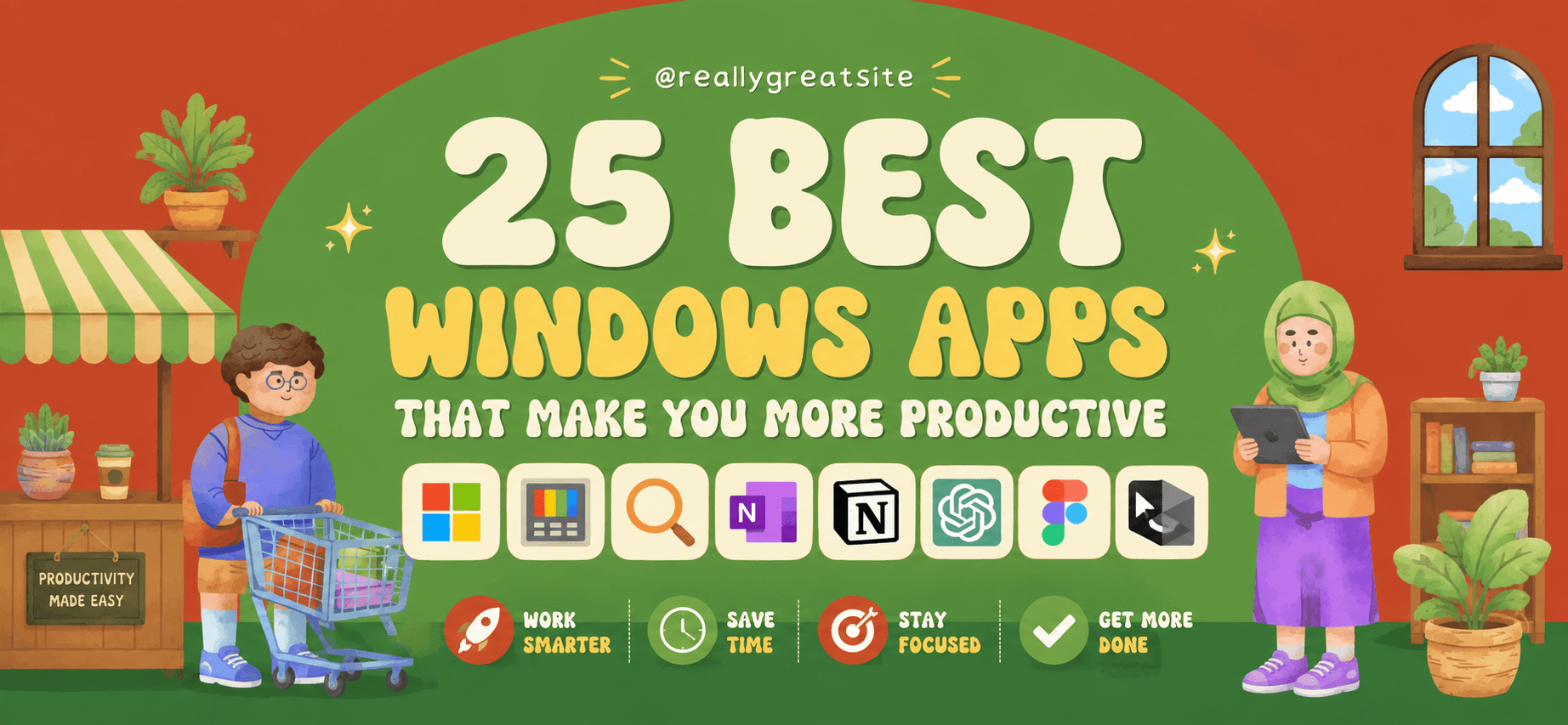
Here are 25 of the best Windows apps worth installing in 2026.
Microsoft PowerToys is one of the first apps I would recommend installing on a new Windows PC. It adds a collection of useful utilities including FancyZones, PowerToys Run, Color Picker, Text Extractor, PowerRename, Peek, Workspaces, and more.
Best for: Windows customization, multitasking, shortcuts, and power users.
Raycast brings a fast command launcher and productivity layer to Windows. You can quickly launch apps, search, run commands, and extend your workflow with integrations.
Best for: Keyboard-driven workflows and quick actions.
Windows Search can sometimes feel slow when you're looking for a specific file. Everything is a lightweight search utility that can find files and folders almost instantly.
Best for: Finding files quickly.
ShareX is an excellent free screenshot and screen-capture tool. You can capture regions, full screens, scrolling pages, GIFs, and videos, then annotate or automatically process your captures.
Best for: Screenshots, screen recording, tutorials, and designers.
Bitwarden is an open-source password manager that keeps your passwords, passkeys, secure notes, and other credentials organized across devices.
Best for: Password management and security.
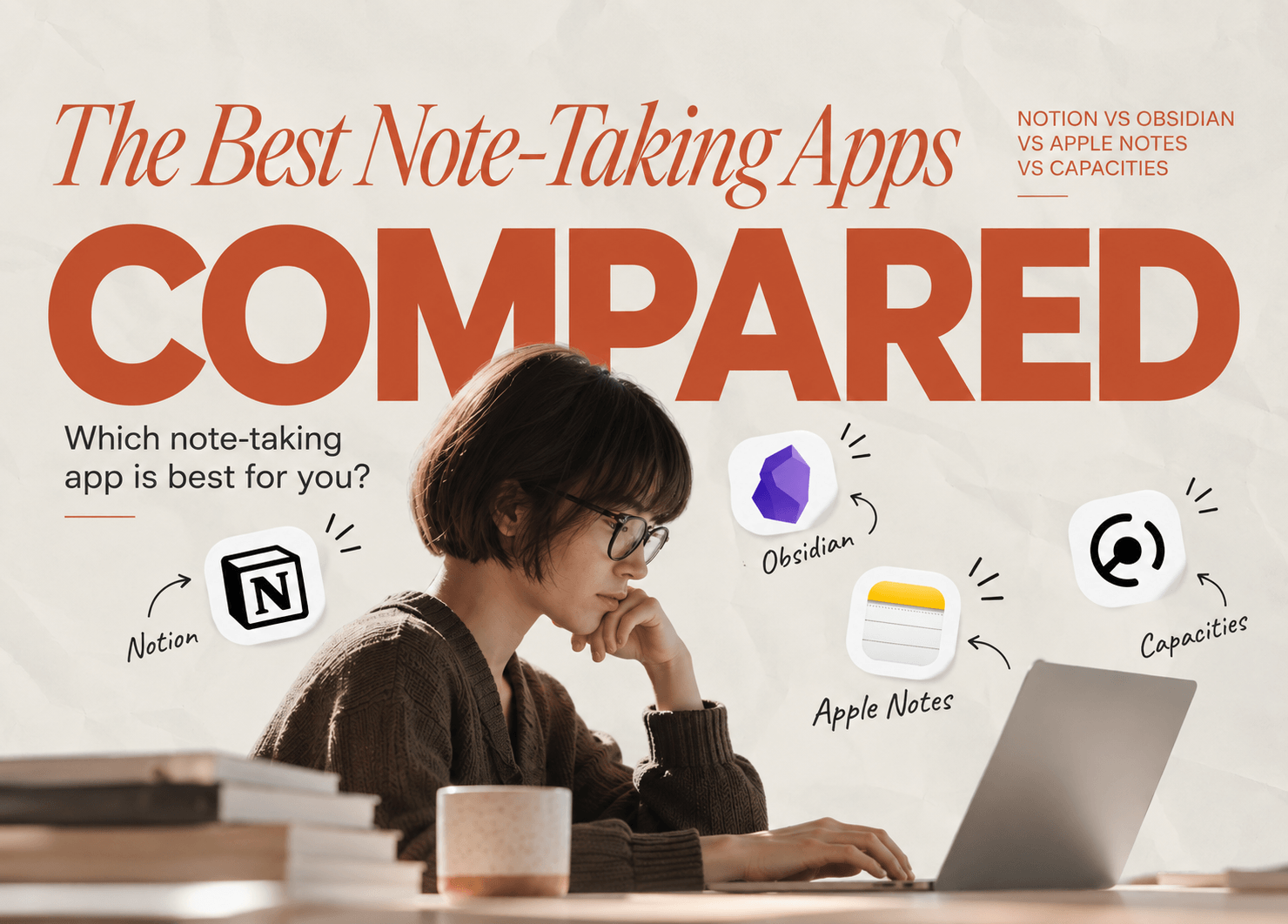
Obsidian is a powerful note-taking app built around Markdown. Its linked-note system makes it useful for creating a personal knowledge base, collecting research, and connecting ideas.
Best for: Notes, research, knowledge management, and writing.
Notion combines notes, documents, databases, tasks, wikis, and project management into one workspace. Its Windows desktop app is also available through the Microsoft Store.
Best for: Projects, documentation, planning, and team collaboration.
Todoist keeps your tasks organized without overwhelming you with unnecessary features. Create projects, deadlines, recurring tasks, priorities, and reminders.
Best for: Personal task management and daily planning.
TickTick combines tasks, reminders, calendars, habits, and focus features in one productivity app.
Best for: People who want tasks, habits, and scheduling in one place.
If you prefer something simple, Microsoft To Do is an excellent choice. It provides task lists, deadlines, reminders, recurring tasks, and the useful My Day feature. It also works well with Microsoft's ecosystem.
Best for: Simple daily task management.
OneNote is Microsoft's flexible digital notebook. You can organize notes into notebooks and sections while adding text, images, drawings, files, and other content.
It is particularly useful if you already use Microsoft 365.
Best for: Students, researchers, meetings, and general note-taking.
ChatGPT can act as a general-purpose AI assistant for writing, brainstorming, research, coding, analysis, and everyday problem-solving.
The Windows app makes it easier to keep AI available alongside your other applications.
Best for: AI-assisted work and research.
Claude is particularly useful for writing, analyzing long documents, brainstorming, coding, and working through complex problems.
It can be a strong second AI assistant if you want another perspective beyond ChatGPT.
Best for: Writing, research, reasoning, and coding.
Perplexity is designed around AI-powered search and research. Instead of simply giving you a list of search results, it can summarize information and provide sources.
Best for: Researching topics, products, technology, and current information.
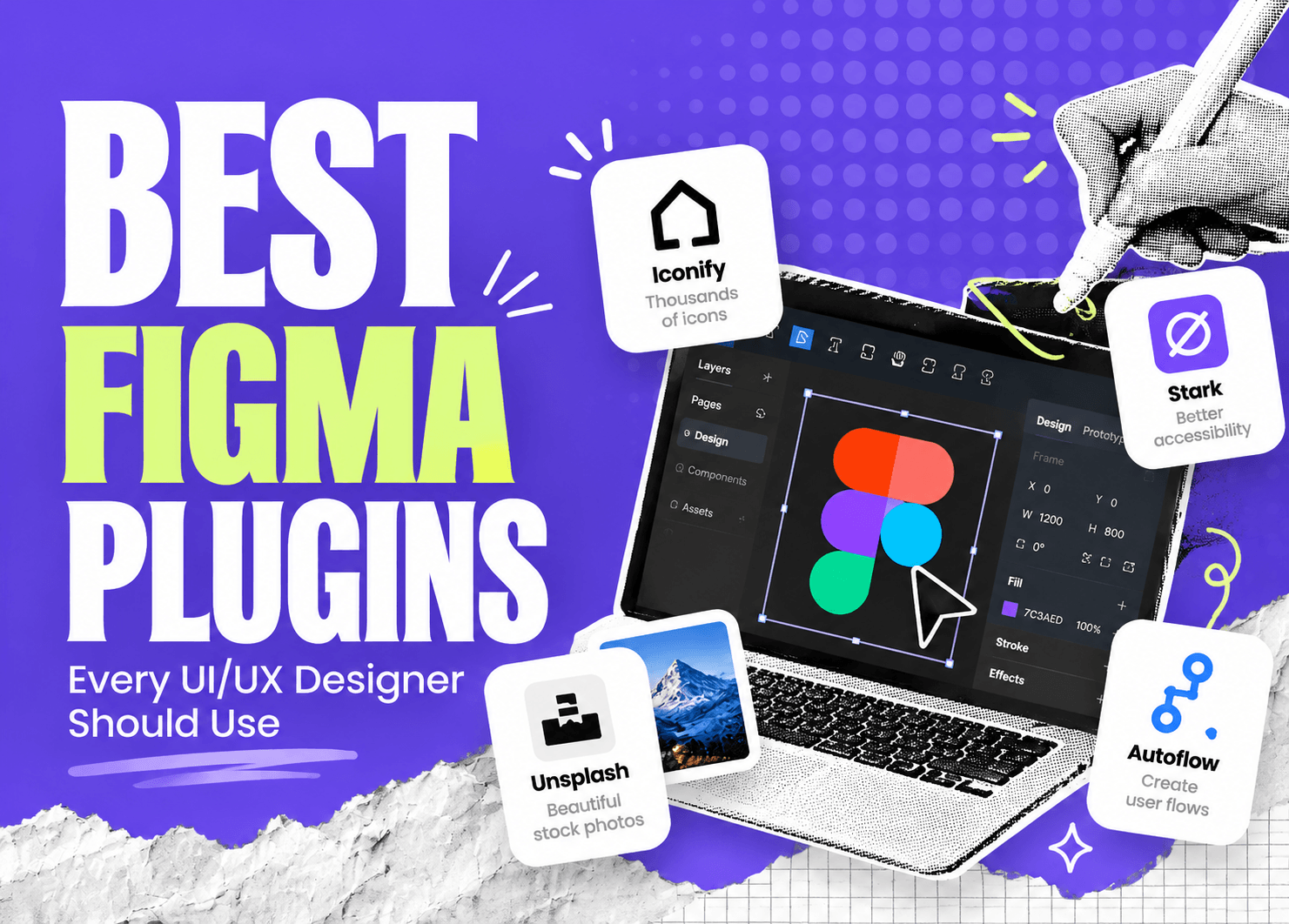
Figma is one of the most useful tools for designers. It lets you design interfaces, create prototypes, build design systems, and collaborate with other people.
For UI/UX designers, it is practically essential.
Best for: UI/UX design, prototyping, and collaboration.
Photoshop remains one of the most capable image-editing applications available. It is useful for photo editing, graphic design, compositing, mockups, and digital artwork.
Best for: Professional image editing and graphic design.
7-Zip is a free, open-source file archiver that supports a wide range of archive formats.
It's one of those small utilities you may not use every day, but when you need to extract or create an archive, it's extremely useful.
Best for: ZIP, 7z, and archive management.
For Microsoft 365 users, SharePoint can be useful for organizing company documents, team resources, and internal information.
Best for: Teams, organizations, and document collaboration.
VLC is a reliable media player that supports a huge variety of audio and video formats.
It's particularly useful when Windows' default media player doesn't support a file you're trying to open.
Best for: Playing almost any video or audio format.
EarTrumpet gives you much better control over Windows audio. You can quickly control the volume of individual applications and choose which audio device they should use.
Best for: People who frequently switch between speakers, headphones, monitors, and other audio devices.
Flow Launcher is a fast application launcher for Windows. It can search apps, files, settings, and more using a keyboard shortcut.
Best for: Fast app launching and keyboard workflows.
EverythingToolbar brings the extremely fast Everything search engine directly into a Windows-style search interface.
If you frequently search for files, it can save a surprising amount of time.
Best for: Fast file searching from the taskbar.
AutoHotkey lets you create custom keyboard shortcuts, macros, hotkeys, and automation scripts.
For repetitive workflows, it can turn several manual actions into a single shortcut.
Best for: Automation and custom keyboard shortcuts.
Microsoft Edge is more than just a browser. Its Windows integration, built-in productivity features, profiles, collections, and AI features make it a practical browser for work.
Microsoft also positions Edge as a central Windows productivity tool with built-in AI assistance.
Best for: Browsing, research, Microsoft 365, and everyday work.
Cursor is an AI-powered code editor designed to help developers write, understand, modify, and debug code faster.
It can be particularly useful when working on larger projects where understanding the relationship between multiple files is important.
Best for: Developers, programmers, and AI-assisted coding.
Start with: PowerToys + Everything + ShareX + Bitwarden + VLC
These cover Windows customization, file searching, screenshots, passwords, and media.
I'd recommend: Figma + Photoshop + ShareX + PowerToys + ChatGPT + Claude
This combination covers design, image editing, AI assistance, screenshots, and Windows productivity.
Try: Cursor + PowerToys + Everything + AutoHotkey + 7-Zip + Claude
These tools can make coding, file management, automation, and everyday development much easier.
A simple setup could be: OneNote + Notion + Todoist + Perplexity + ChatGPT + ShareX
This gives you tools for notes, research, tasks, AI assistance, and capturing information.
If I had to choose only 10 apps from this list, I'd pick:
The important thing isn't how many apps you install. It's how well they fit into your workflow.
A few well-chosen tools can remove dozens of small frustrations from your day. And because Windows already provides many useful productivity features, you can build a very capable setup without paying for every app you use. Microsoft's own 2026 productivity guidance emphasizes starting with the built-in Windows tools and adding applications as your workflow requires them.
The best productivity setup isn't necessarily the one with the most software.
It's the one where finding information is fast, repetitive tasks are automated, important work is organized, and your tools stay out of the way.
Start with two or three apps that solve your biggest problems. Once those become part of your daily workflow, add more only when you actually need them.
That's how you turn a Windows PC into a genuinely productive workspace.

Get in touch to personalise your website with custom features and enhanced functionality.

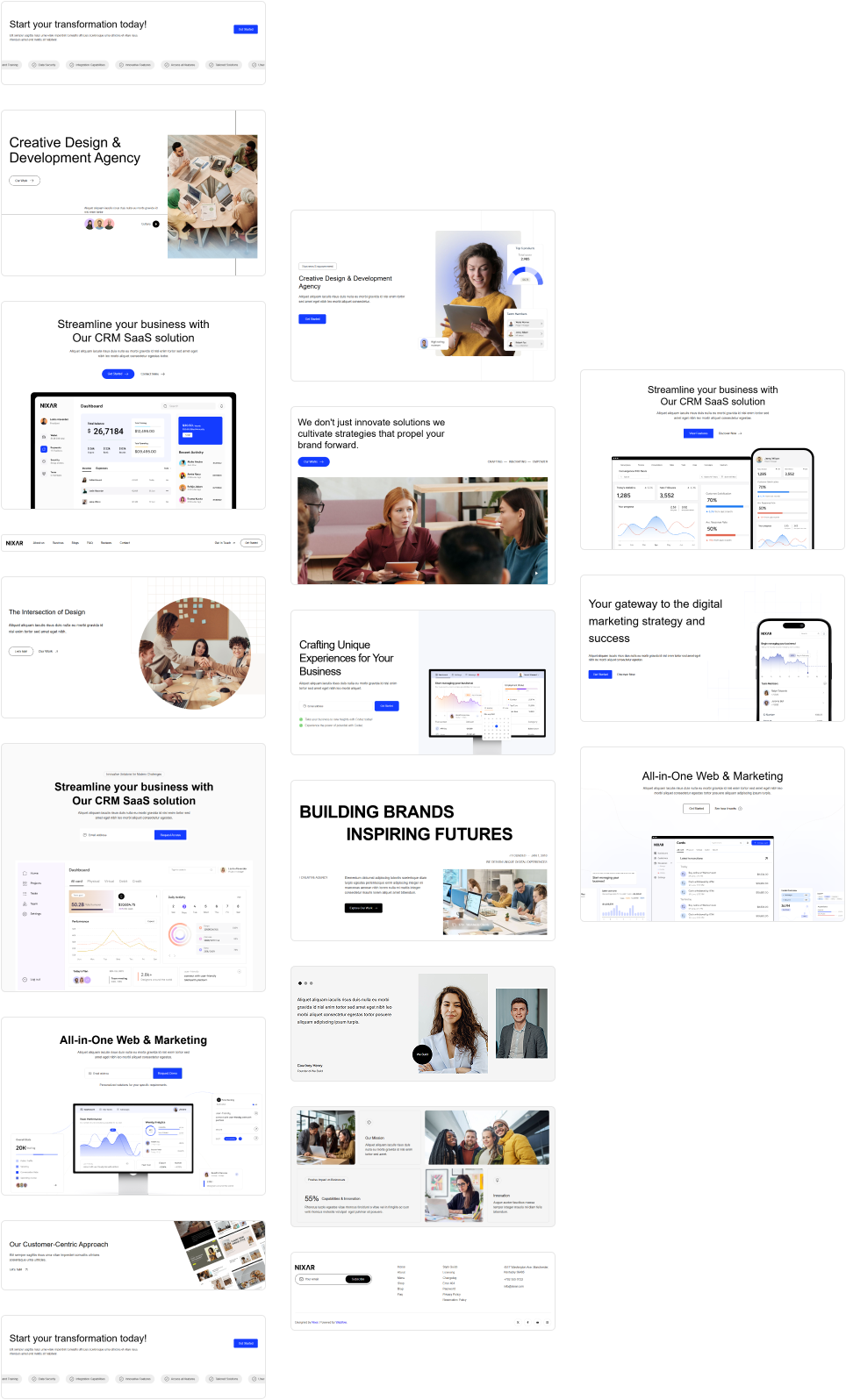
250+ components. Zero fluff. Just clean webflow elements to help you build better websites faster.